







Scrivener: A Recommendation

Authors use a variety of writing tools to draft manuscripts, from computers to microphones to paper. I dictate the bulk of my first drafts into my iPhone, and then I finish them on my MacBook, but everyone is different, and one method doesn’t work for all writers. Even if what you’re currently using is working, I suggest you sample new drafting tools to determine if they are more efficient or effective.
If you work on a computer, I recommend using Scrivener. A majority of writers create in Microsoft Word, but Scrivener is becoming a popular novel drafting tool. I think of Scrivener as Word on steroids, so if you’ve mastered Word, you’ll have an easy transition to Scrivener. The user interfaces have similar appearances, but Scrivener offers dozens of additional features. Scrivener has templates for fiction, non-fiction, and scriptwriting to structure manuscripts in common formats.
When you create a new project, a vertical binder runs along the left side of the screen and serves as a visual representation of the story. Each chapter is a folder that contains text boxes for scenes. I use one scene per chapter, but you can use as many as you’d like. You can easily drag chapters and scenes around in the binder to reorder your manuscript. One cool function is the ability to color-code chapters and scenes, which helps organize multi-POV narratives.
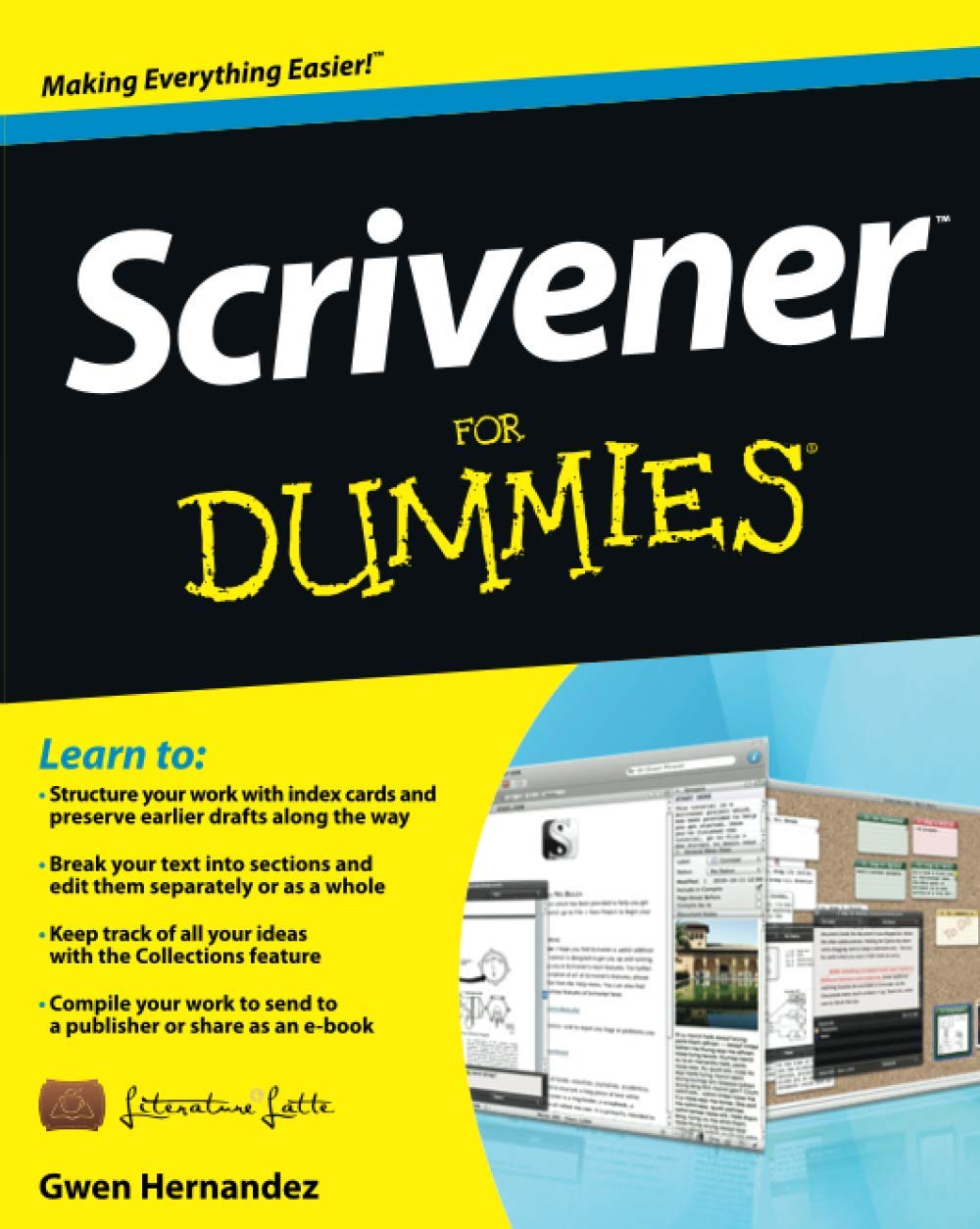 Scrivener also has a corkboard view, which resembles index cards on a bulletin board. You can also see your manuscript in an outline format. The center of the software displays whichever text box you’re currently writing. This looks similar to Word and uses almost identical toolbars.
To the right of your document is the inspector that shows metadata. It has a notes section where you can add a scene synopsis to aid in planning. You can flag scenes that need editing or are complete. Perhaps the best feature is the snapshot function, which lets you save the current version of your scene with a single click. Doing this before editing gives you the option to revert to an earlier version if your edit goes off track. You can also compare versions side by side.
Another benefit to Scrivener’s many functions is in the binder, where authors can create and store character sketches, location descriptions, research, and notes. This puts everything you need in one place for easy access. If you’re curious about Scrivener, you can download it for free for a trial period. Literature and Latte developed the software, and they have numerous tutorial videos on YouTube to help you get started. Give it a shot.
Click here to learn more at Scrivener.app.
Read more Craft Tips by Jeff here.
Click here to learn more about his Writing Services for Authors!

WE’LL MEET YOU THIS WEEK AT ELAINE’S LITERARY SALON
208 Queen Street, Alexandria, Virginia 22314
Thursday, Nov. 5: Join us for a flight of 5 reds paired with 3 dishes from Elaine’s award-winning menu. You are invited (and encouraged) to wear red!

Cost per guest: $149 total (includes tax and tip). Limited to 30 reservations. Each guest will enjoy full-size plates and half a glass of each of the 5 wines described below!
When: Thursday, November 5 from 6-9pm
Click here to buy your tickets today — and invite friends: Nov5redwinedinner.eventbrite
You are going to love book 3 in the series by IP attorney and author Timothy Trainer:

When: Saturday, November 07, 2026 from 12-3pm
Get your free ticket: Nov7TheChinaDilemma

When: Sunday, November 08, 2026 from 12-3pm
Get your free ticket: QuillendeBruney.eventbrite.com
 Nov. 5: Join us for a flight of 5 reds paired with 3 dishes from Elaine’s award-winning menu. Please wear red!Nov5redwinedinner.eventbrite.comSaturday, November 07, 2026In-person live event12-3pm
 You are going to love book 3 in the series by IP attorney and author Timothy Trainer: “The China Dilemma”Nov7TheChinaDilemma.eventbrite.comSunday, November 08, 2026In-person live event12-3pm
 Quillen deBruney is bringing her lyrical, atmospheric, and deeply personal work to Elaine’s Literary SalonQuillendeBruney.eventbrite.comThursday, November 12, 2026In-person live event6-9pm
 Proud caridura Edna Solís is bringing her interactive book, “The Secret Earth Society,” to Elaine’sEdnaSolis.eventbrite.comSunday, November 15, 2026In-person live event12-3pm
 Iceland native, storyteller and teacher Solveig Eggerz brings us her latest novel, “Sweet Potato”SweetPotato.eventbrite.comTuesday, November 17, 2026Coming soon to the Elaine’s Literary Salon show208 Queen Street, Alexandria, Virginia 22314
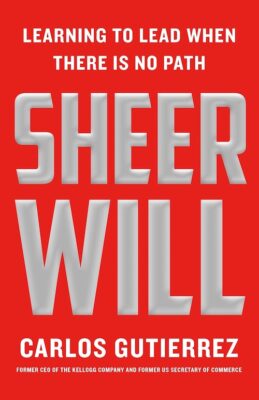 Former Sec. of Commerce Carlos Gutierrez brings us his new book, “Sheer Will: Learning to Lead When There Is No Path”Saturday, November 21, 2026In-person live event12-3pm
 Dr. Alecia R. Jones brings us “30 Minutes to London: True Stories of Faith, Healing, and Becoming”30MinutestoLondon.eventbrite.comTuesday, November 24, 2026Coming soon to the Elaine’s Literary Salon show208 Queen Street, Alexandria, Virginia 22314
 Meet Eric Dezenhall, journalist, damage control expert, and author of 12 titles. You’ll be fascinated by his newest non-fiction book, “Wiseguys and The White House”Tuesday, November 24, 2026Coming soon to the Elaine’s Literary Salon show
 A.D. Metcalfe, VP of the Cape Cod Writers Center and producer for Books and the World, gives us Johnny Alvarez, a precocious young runaway, who knows decay and lawlessness offer camouflage and opportunitySaturday, January 09, 2027In-person live event12-3pm
 Award-winning author Elyse Hoffman strives to tell historical tales with new twists, including her latest title, “The God of Nazi-Land Part I”ElyseHoffman.eventbrite.comSaturday, January 16, 2027In-person live event12-3pm
 Join us to learn about a powerful debut book by E. Aramide Adedeji, LICSW, LCSW-C, who gives us a practical guide for those recovering from intimate partner violenceAWholeNewWorld.eventbrite.comSaturday, February 27, 2027In-person live event12-3pm
 Elaine’s Literary Salon welcomes back prolific novelist Jeff Markowitz and his newest book, “Maximum Security”